Police & Fire Scanner Radio
for Android
Add any public scanner stream URL — police, fire, EMS, or weather — and listen live, right alongside your severe weather alerts. Plays in the background with lock-screen controls, just like a real radio.
How Scanner Radio Works
Bring Your Own Streams
Paste any public scanner stream URL or feed ID number. StormCast plays it in the same player as every other stream you add.
Background Playback
Scanner audio runs through a real Android foreground service — it keeps playing with the screen off or the app backgrounded, with play/pause controls on your lock screen and notification shade.
Auto-Tagged by Type
Name your stream and StormCast automatically tags it Police, Fire, EMS, or Weather so you can filter your list when you've added feeds for more than one county.
Built-In Feed Search
Pick your state in the Add Stream screen and tap Browse — it opens a search for public scanner streams in your area so you don't have to go hunting on your own.
How to Add a Scanner Stream
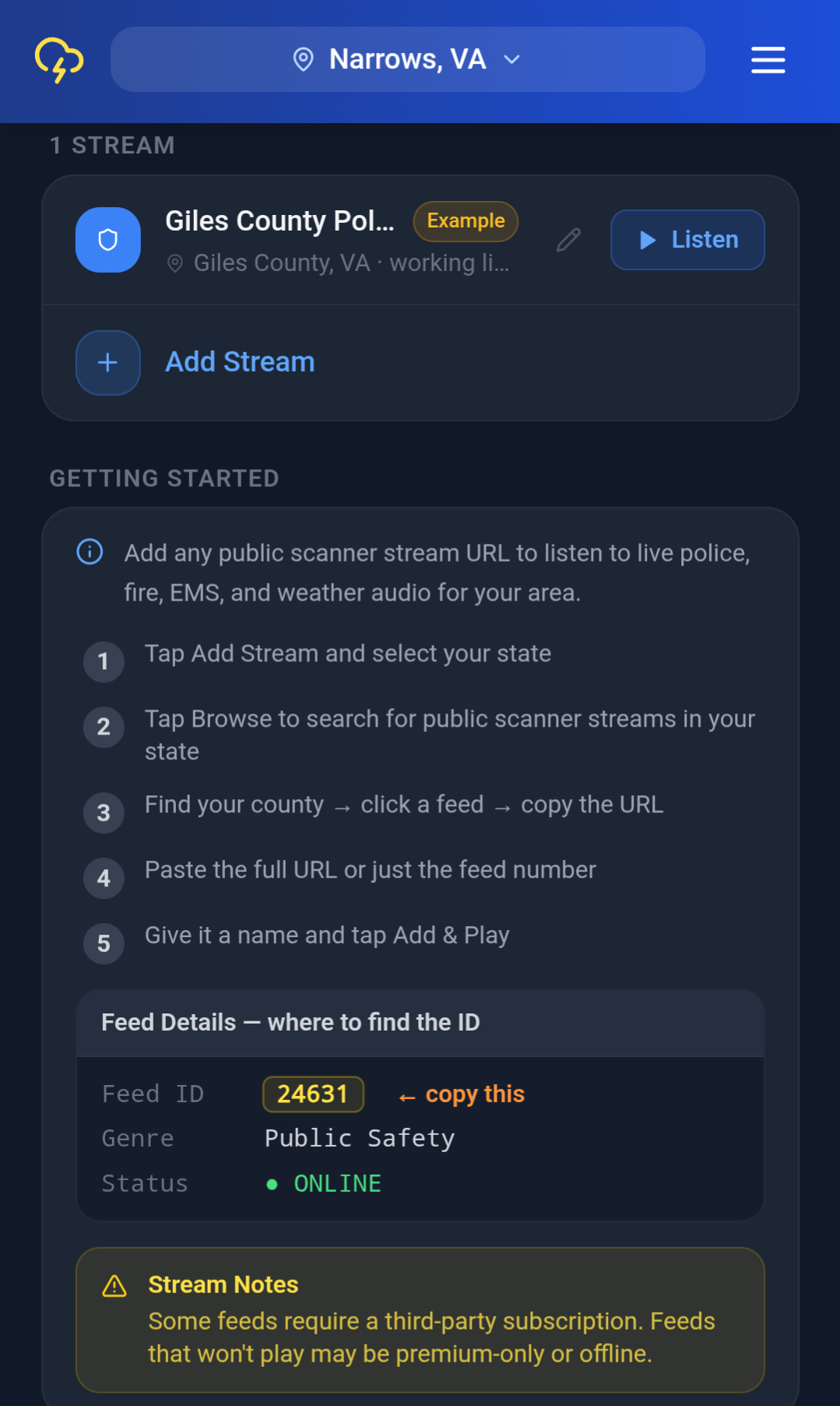
Open Radio and tap Add Stream
From the bottom nav, go to Radio, then tap the Add Stream button.
Pick your state and tap Browse
Select your state from the dropdown, then tap Browse to search for public scanner streams in your state.
Find your county and copy the feed
On the results page, find your county's feed, open it, and copy either the page URL or just the feed ID number shown on the feed's details.
Paste it into StormCast
Paste the full URL or just the feed number into the "Paste feed URL or ID" field — StormCast recognizes either format.
Name it and tap Add & Play
Give the stream a name (e.g. "Fairfax County Police") — StormCast auto-detects the type from words like "Fire," "EMS," or "Weather" in the name — then tap Add & Play.
Editing or Removing a Stream
Tap the pencil icon on any stream you've added to change its name, location, or URL — the edit screen accepts any direct public audio stream URL, so you can point it at a different source entirely. Tap the trash icon to remove a stream you no longer want. Your default example feed can be edited but not deleted.
Frequently Asked Questions
How do I add a scanner stream to StormCast?
Open the Radio tab, tap Add Stream, pick your state, and tap Browse to search for public scanner streams in your area. Copy the feed's URL or ID number, paste it into StormCast, give it a name, and tap Add & Play.
What URLs does StormCast's scanner radio accept?
You can paste a full scanner stream listen URL, just the numeric feed ID, or any direct public audio stream URL.
Does scanner radio keep playing in the background?
Yes. StormCast runs scanner audio through a proper Android foreground service, so it keeps playing with your screen off or the app backgrounded, with play/pause controls right on your lock screen and notification shade.
Is scanner radio free in StormCast?
Yes. Adding and listening to unlimited scanner streams is free, alongside all of StormCast's severe weather alerts, river gauge monitoring, and hurricane tracking.
Why won't a scanner feed play?
Some public scanner feeds require a third-party premium subscription to stream, and others may simply be offline. If a feed won't play, check its status with the stream's original source before assuming StormCast is at fault.
Add Your Local Scanner Feed
Police, fire, EMS, weather — bring your own streams and listen live, right next to your severe weather alerts.